💊 Labels - Printing
This guide simplifies label printing by showing how to quickly find labels, complete required fields, and ensure accuracy with efficient tools like search and scanners.

Step 1. Use the search bar in the Labels section to quickly find existing labels in your label library. You can also perform this search using a scanner.

Step 2. If the label has been created previously, it will appear in the search results below the bar.

Step 3. Fill out all required fields. Some of this information will appear on the label, while other details are used solely for reporting purposes.
Step 4. Click 'Print' to generate a PDF file, which can then be sent to your designated printer.
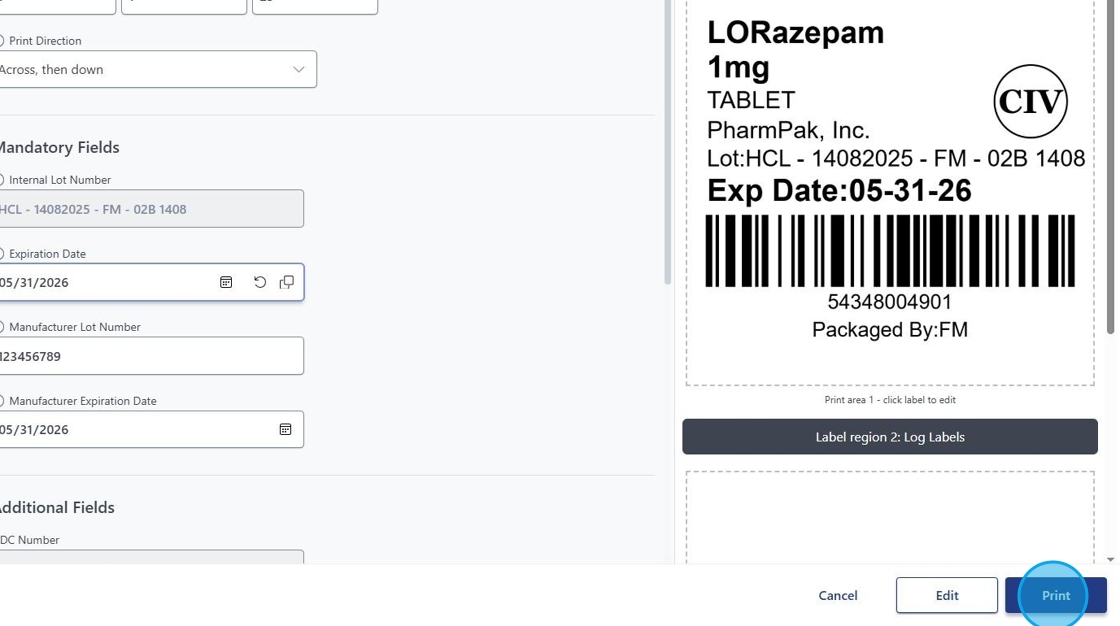
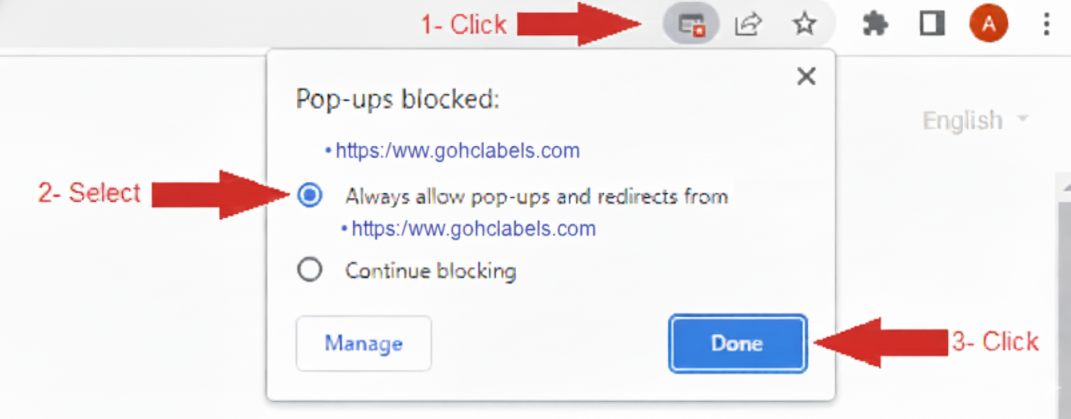
If nothing happens when you click Print, a pop-up blocker may be stopping the PDF.
Just click the pop-up icon in the top right of your browser and allow the PDF to open.